


Google Keep - Notes and lists
4.759.39K Reviews
App Specs
- Version
- Varies with Device
- Updated On
- License
- Free
- Downloads
- 1,000,000,000+
- Developer
- Google LLC
- Categories
- Productivity
- Platform
- Android, iOS
Screenshots
 Analysis by AppCompare
I reach for Google Keep - Notes and lists when I need to catch a thought before it disappears, not when I want to build a carefully structured personal archive. That distinction shapes the whole experience: it is a quick, flexible place for lists, reminders, snippets, and rough ideas. As a free productivity app from Google LLC, it has grown into a familiar choice, with over a billion installs and a 4.7 average from around 2.2 million ratings. I find it most useful when I treat it as a working surface for everyday tasks rather than a complete replacement for every kind of note-taking.
When a connection changes the experience
Keep’s value becomes especially clear when I move between devices. A note I save on one device can appear on another through my Google account, which makes it practical for jotting down a thought on my phone and picking it up later elsewhere. That convenience depends on the account and connectivity working as expected, so I would not treat a newly entered note as safely available everywhere until it has had a chance to sync.
This matters in small, ordinary moments. If I am adding items to a shared shopping list while someone else is checking it, a working connection helps everyone see the current version. If I am traveling through a place with patchy service, I avoid relying on an unconfirmed change as the only copy of something important. Keep is at its best when its quick capture and connected access are working together; it is less reassuring as the sole home for information that must be available at a precise moment.
Guides and Analysis on Google Keep - Notes and lists
Made for quick mobile capture
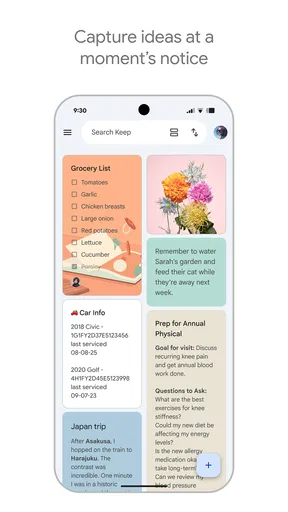
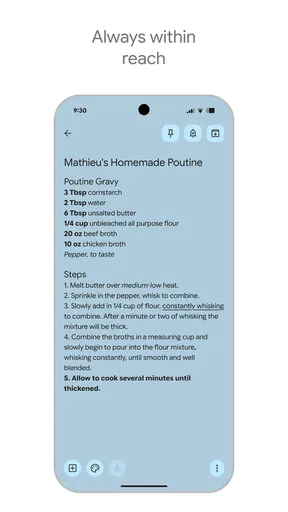
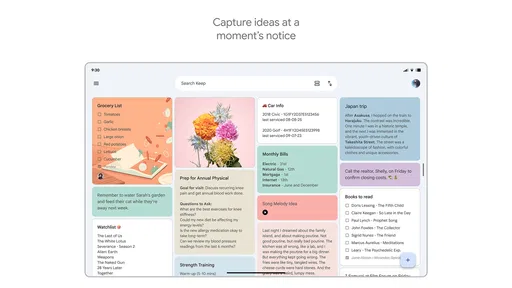
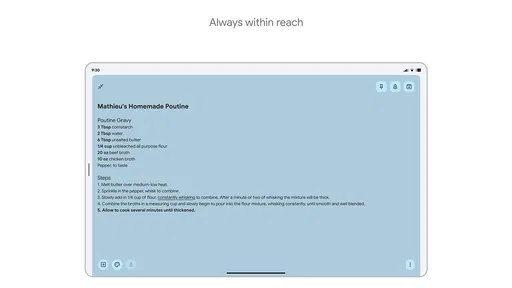
The app suits phone use because its basic jobs are easy to understand: start a note, make a list, or capture something in another form. I like that I can use a short text note for an address or idea, then use a list when I need to tick off errands. Color can help separate a few active notes at a glance, though I would not build a complicated system around color alone. If the screen is small or I am in a hurry, a plain title and clear wording are more dependable than elaborate organization.
Voice memos and images give me options when typing is awkward, such as saving a visual reference or speaking a reminder to myself while occupied. They are convenient capture methods, but they do not automatically turn a messy collection into a searchable, well-structured notebook. I still need to review what I have saved, add useful context, and remove notes that no longer matter.
What I do when something goes wrong
Quick capture can create its own kind of clutter. A rushed note with no helpful title may be easy to save and surprisingly hard to recognize later, especially when several notes cover similar errands or ideas. I get better results by putting the key subject in the first line and keeping each list focused on one job. For a project with many stages, I would use Keep for immediate reminders and loose observations, then keep the detailed plan in a tool designed for longer documents or task tracking.
When a note does not appear where I expect, I first check that I am using the same Google account and give syncing a moment before making another copy. Duplicating a note in a hurry can leave me unsure which version is current. For anything I cannot afford to lose, I avoid making Keep my only record; a lightweight note app is convenient, but convenience is not the same thing as a deliberate backup routine.
Worth Reading Before You Choose

Basketball Stars: Multiplayer Is Fast, but Can It Recover When Matches Go Wrong?

WEBTOON Turns Phone Updates Into a Better Reading Routine

Link to Windows Runs on Shared Habits, Not Social Feeds

How Alibaba.com Dominates the B2B Marketplace

Metro's Quiet Rise: Redefining Mobile Communication

Harnessing Ecosystem Power with Phone Tracker by Number
Keep data use in perspective
Notes are often personal, so I think about what I choose to put into a cloud-connected workspace. Grocery items and casual ideas are a natural fit for my routine; sensitive details deserve more care and should not be added casually just because a note is quick to create. Shared notes also call for a quick check of who needs access, particularly when a list has served its purpose and no longer needs to stay shared.
If I am trying to be careful with mobile data, I do larger organizing sessions when I have a dependable connection rather than assuming every change will be available immediately on another device. The everyday text-and-list workflow is lightweight in practice, but images and voice capture are different kinds of content, so I use them when they genuinely help. This is less about avoiding the app and more about matching the capture method to the moment.
Organize Your Life, One Note at a Time
So, what’s the deal with Google Keep? At first glance, it might seem like just another note-taking app, but there’s more beneath the surface. It lets you create notes and lists with ease, and the colorful interface makes it a joy to use. You can even add images and voice memos, which is perfect when you’re on the go and need to jot something down quickly.
Stay in Sync
One of my favorite features is its seamless integration with Google services. Whenever you save a note, it’s automatically synced across all your devices. Left your phone at home? No worries, just log into your Google account from any device, and all your notes will be right there waiting for you. It’s like magic!
Collaboration Made Easy
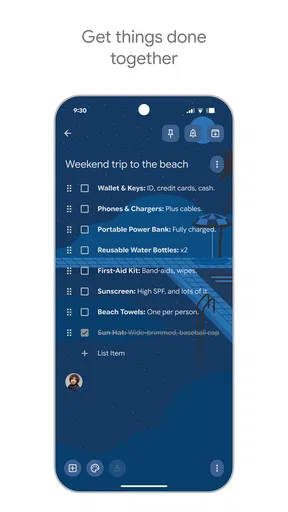
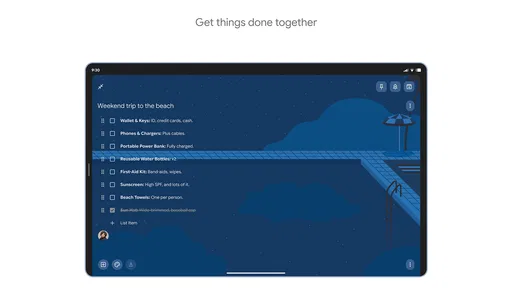
Need to share a shopping list with your partner or brainstorm ideas with a friend? Keep has got you covered. You can share notes with others and collaborate in real-time. It’s super handy for group projects, planning events, or just keeping everyone in the loop.
Get Notified and Stay on Track
One thing I absolutely love is the reminder feature. You can set time-based or location-based reminders, so you’ll never forget to pick up milk or call Aunt Martha on her birthday. Plus, the ability to pin important notes ensures that you won’t lose track of your priorities.
Google Keep is simple yet powerful, offering a ton of flexibility and functionality without overwhelming you. Whether you’re a student, a busy professional, or someone who just loves staying organized, this app is a must-try. It's like having a digital sticky note pad that never runs out of space. With its intuitive design and integration with the Google ecosystem, it’s a no-brainer for anyone looking to streamline their note-taking process.
A realistic day with quick notes
Here is where Keep earns its place for me: I can start a shopping list before leaving home, add an item when I remember it during the day, and check things off in the store. Later, I might save a quick idea for work or a class without opening a full document editor. The same note can be useful because it stays short and tied to a clear task. That continuity is more valuable than a long set of features I would rarely use.
For a shared household list, I would keep the note focused on items to buy rather than mixing it with meal plans, budgets, and unrelated reminders. That makes it easier for another person to understand at a glance. Once the shopping is done, I can clear or revise the list instead of letting completed errands accumulate and obscure the next trip.
Small habits that make notes easier to find
A few simple habits prevent Keep from becoming a colorful pile of forgotten scraps. I give notes titles that say what they are for, such as the event or errand, and use a checklist only when I actually need to mark progress. Pinning is useful for a small number of current priorities; if I pin everything, the visual cue stops helping. Likewise, colors work best as a light sorting aid, not as a substitute for clear names.
I also separate capture from cleanup. When I am busy, I save the thought in the quickest form available and return later to add context or decide whether it deserves to stay. That is a better fit for Keep than trying to write polished meeting minutes while walking between appointments. If a note grows into a detailed plan with dependencies, I move the structured work to a document or task manager and leave Keep with the short prompt I need to remember it.
Choosing between Keep and other note tools
Compared with a paper pad, Keep is easier to carry across devices and share, while paper remains dependable when I want to sketch freely or avoid relying on an account and connection. Compared with a full notebook app, Keep feels faster for brief lists and loose thoughts, but it is less suited to building long, linked reference material. A dedicated task manager is a better fit when I need projects, deadlines, and a more formal view of ongoing work. I use Keep when speed and low friction matter more than deep structure.
That difference also helps answer who should skip it. If you want a richly organized knowledge base, extensive document formatting, or a strict project workflow, Keep may feel too spare. If you already have a note system that you maintain consistently, adding another place can create duplication rather than clarity. I would choose it for quick capture and shared everyday lists, not simply because it is familiar or free.
What to expect from reminders and sharing
Reminders are useful when a note needs to come back to my attention at a particular time or place, but I still make the reminder itself specific. “Pick up groceries” is more useful than a vague prompt whose purpose I will have forgotten by the time it appears. Location-based reminders are appealing for errands, though I would not build a critical routine around one without considering whether the circumstances make a timely notification realistic.
Sharing is similarly practical when everyone involved needs the same short list or brainstorming note. It is not automatically the right way to manage a complicated collaboration: a growing discussion or a project with assigned responsibilities may be clearer in a purpose-built tool. Before sharing, I check that the note contains only what the other person needs, and afterward I revisit whether ongoing access still makes sense.
Who gets the most from it
I would recommend Keep to people who want a simple landing place for reminders, shopping lists, brief ideas, and small bits of reference material, especially if they already use Google services. Students can use it for quick prompts and reading reminders, while busy workers may appreciate capturing a thought without interrupting a larger task. Families or housemates can benefit from shared lists when the information is straightforward and everyone knows where to look.
It is less compelling for people who need extensive formatting, a carefully nested archive, or a single dependable home for sensitive and important records. The app is free and rated for Everyone, which makes it easy to try, but those details do not change the practical question: will a lightweight note habit help you, or will another system suit your work better? With around 57,000 written reviews, it is clearly a widely used app, yet I would still judge it by whether its simple capture-and-revisit rhythm matches my own routine.
My connectivity verdict
Keep’s connected nature is both its convenience and the main point I would keep in mind. When I have access to my Google account and a stable connection, moving notes between devices and working with shared lists feels straightforward. When access is uncertain, I avoid assuming a fresh change has already reached every place I may need it. For casual ideas and everyday errands, that is an easy trade-off; for important records or complex plans, I pair it with a more deliberate system.
Released on March 20, 2013, and developed by Google LLC, this productivity app has had time to become a familiar part of many people’s routines. I like it most when I keep its job clear: capture quickly, make the next action easy to see, and review notes before they turn into clutter. If that sounds like the kind of lightweight organization you want, it is worth trying; if you need depth, formal project controls, or less reliance on connected services, I would look elsewhere.
Pros
- User-friendly interface enhances productivity.
- Seamless integration with Google services.
- Supports voice memos for hands-free note-taking.
- Collaborative features for shared lists and notes.
- Syncs across all devices for easy access.
Cons
- Limited text formatting options.
- No advanced task management features.
- Offline access can be limited.
- Lacks rich media support in notes.
- No calendar integration for reminders.
FAQs for Google Keep - Notes and lists
How can I organize my notes in Google Keep?
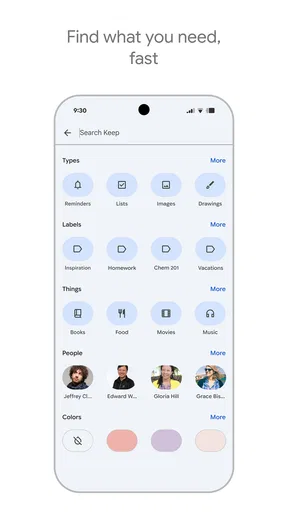
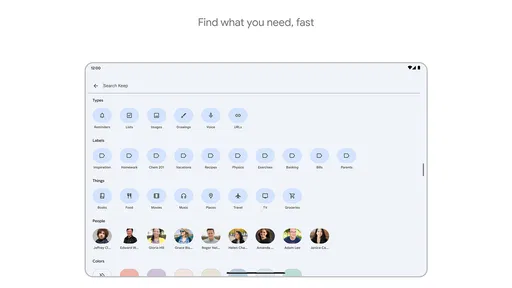
Google Keep allows you to organize your notes with labels, colors, and pins. You can create custom labels to categorize your notes and use different colors to visually distinguish them. Pinning important notes ensures they stay at the top for easy access. This makes it simple to manage and locate your notes efficiently.
Can I collaborate on notes with others in Google Keep?
Yes, Google Keep supports collaboration. You can share your notes with others by adding collaborators, allowing them to view and edit the notes. This feature is particularly useful for group projects, planning events, or sharing lists with friends and family, enhancing productivity through real-time collaboration.
Is Google Keep available offline?
Google Keep offers offline functionality. You can access and edit your notes without an internet connection, and any changes will sync automatically once you’re back online. This ensures that you have continuous access to your information, regardless of connectivity, making it a reliable tool for note-taking on the go.
Does Google Keep integrate with other Google services?
Google Keep integrates seamlessly with other Google services, such as Google Drive and Google Docs. You can easily export notes to Google Docs for more extensive editing or back up your notes to Google Drive. This integration enhances functionality, allowing for a smooth transition between different Google applications.
What types of content can I add to notes in Google Keep?
In Google Keep, you can add various types of content to your notes, including text, images, and voice recordings. You can also create checklists for task management. This versatility allows you to capture information in multiple formats, catering to different preferences and enhancing the overall utility of the app.


